How to create an ETW trace
Note: This is of Microsoft Windows, only!
From time to time, we may ask for an ETW trace of your sim session. Event Tracing for Windows (ETW) provides a mechanism to trace and log events that are raised by user-mode applications and kernel-mode drivers.
Performing an ETW trace
1. Please download the ETW package here : https://github.com/randomascii/UIforETW/releases
2. Once downloaded right click on the folder and select ‘Extract all’ from the drop down menu
3. Next, open the unzipped folder and navigate to the bin folder (you should have a similar path to the one below):
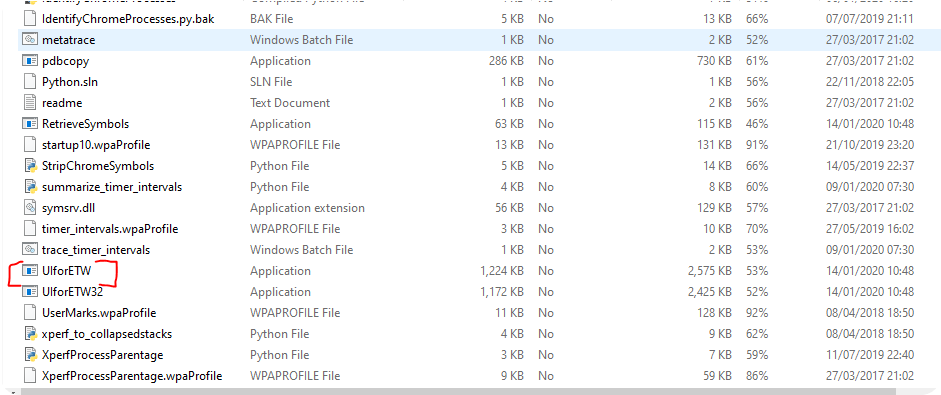
4. Scroll down and click the UIforETW application
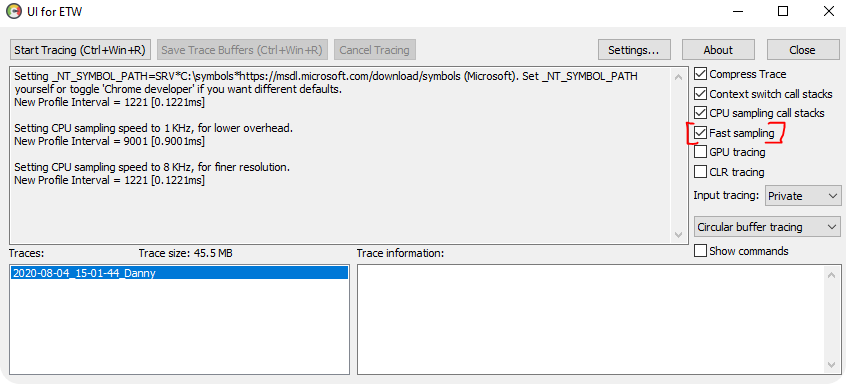
5. Once opened, check the fast sampling check box
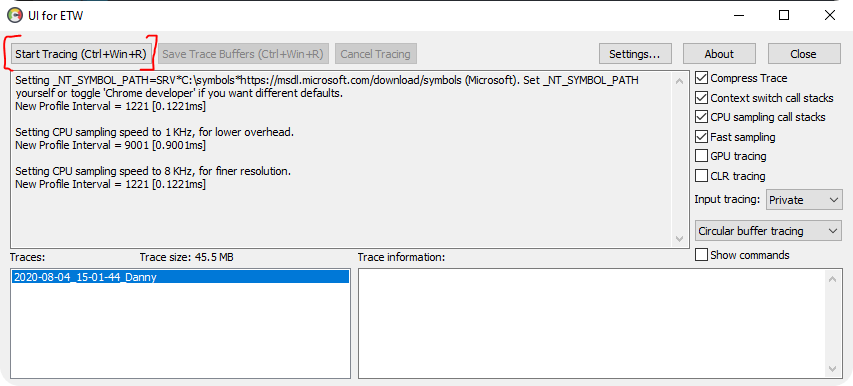
6. Click the ‘Start Tracing’ box and launch X-Plane
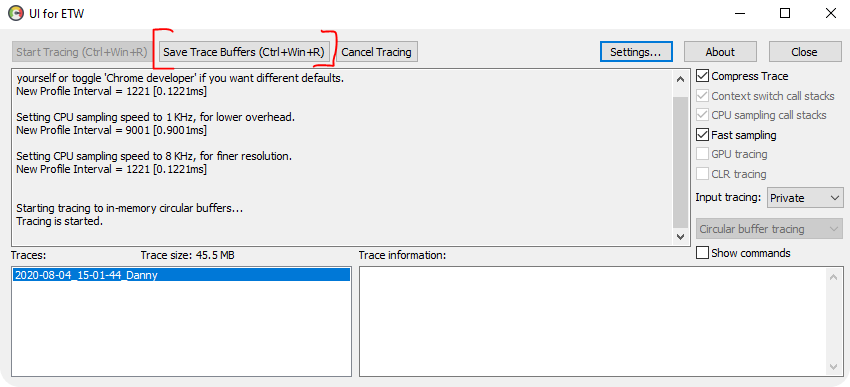
7. Once you encounter the issue in X-Plane, click ‘Save Trace Buffers’. Note: It is important to save the trace before leaving X-Plane. You can save multiple traces in the same session, so you can save a trace to diskevery time you get bad performance.

8. Once saved, you should have a .etl file (usually found in your documents >etwtraces folder)
9. Please send this file to us. Depending on the file size, you may need to use a service such as Google drive or Dropbox. You can then send us the direct link to access them
 Back to Knowledge Base