Install/Un-Install Beta’s (LR Direct)
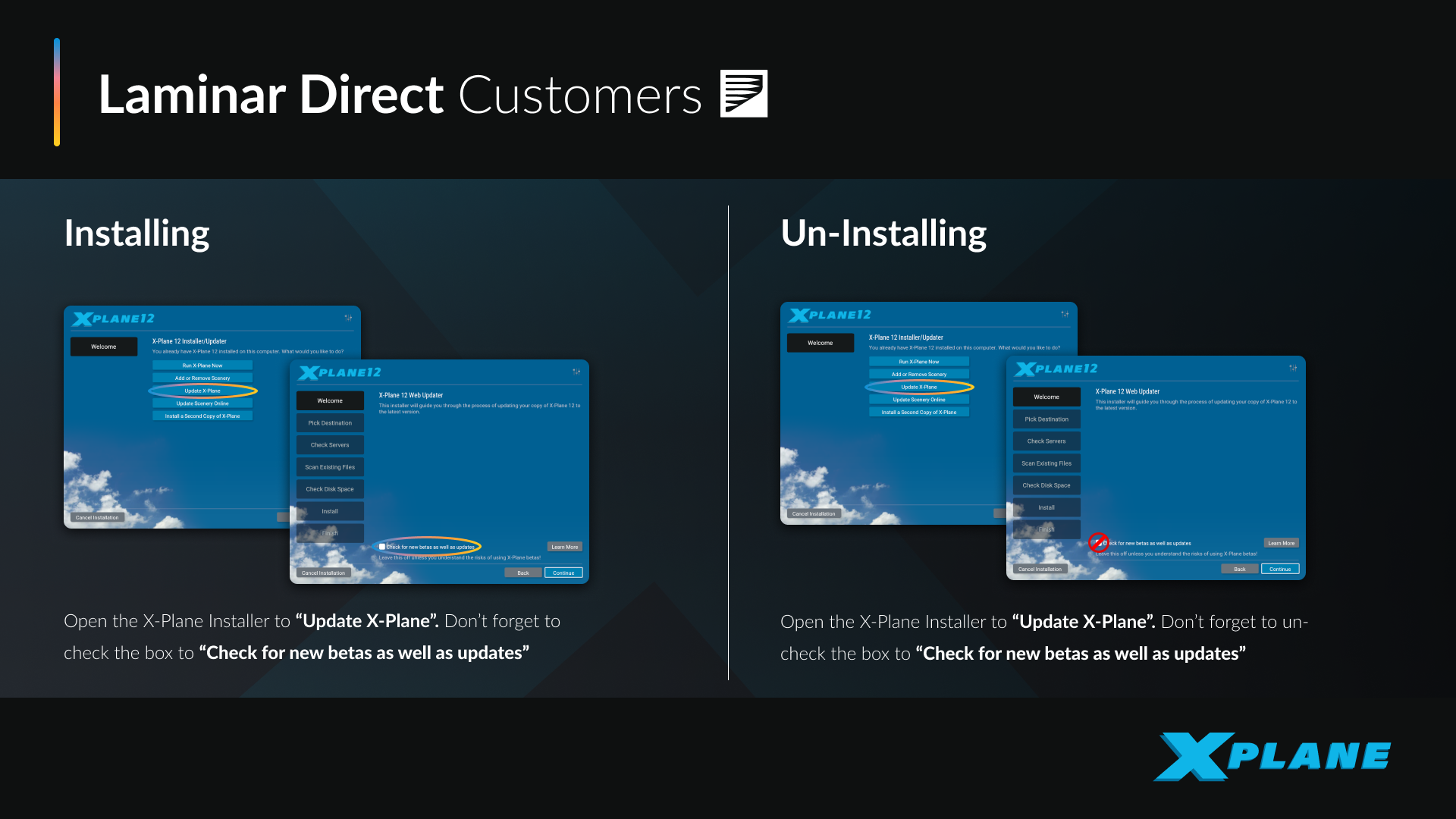
Installing Beta’s
To install the latest beta version of X-Plane, please follow the steps below:
Step 1 — Launch the Installer
Open the X-Plane Installer/Updater application located in your main X-Plane folder.
Step 2 — Select Update Option
On the main screen, click:
- “Update X-Plane”
This will begin the update process for your existing installation.
Step 3 — Enable Beta Updates
On the next screen:
- Locate the option “Check for new betas as well as updates”
- Ensure this box is checked
This step is essential—without it, only stable releases will be installed!
Step 4 — Proceed with Update
Click “Continue”, then:
- Allow the installer to scan your files
- Download and install the latest beta version automatically
Step 5 — Launch X-Plane
Once complete:
- Launch X-Plane normally
- The title screen should reflect the current beta version number
Reverting to Stable Version
To return to the public (non-beta) version:
- Open the installer again
- Click “Update X-Plane”
- Uncheck “Check for new betas as well as updates”
- Continue the update process
 Back to Knowledge Base