Safe Mode
Starting with X-Plane 12.1.4, we’ve included a “Safe Mode” to the sim. The feature works in a similar capacity to other similarly known “Safe Modes.” This makes triaging issues significantly easier, as the user does not have to manually uninstall (most) add-ons.
This is not a substitute for plugins that fundamentally change X-Plane’s files and resources. For this, a file restore is required.
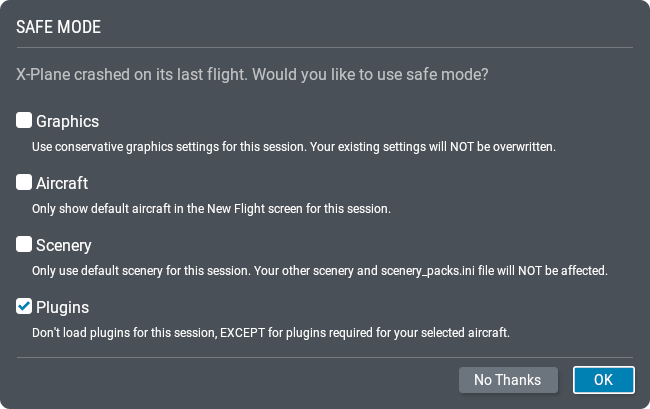
The following options are available
- Graphics – Using a lowered graphics setting for the current loaded session. This will not overwrite your existing settings for future sessions
- Aircraft – Only loading default aircraft for current loaded session
- Scenery – Using only default scenery for current loaded session. X-Plane will not read anything in the “custom scenery” folder or your “scenery_packs.ini”
- Plugins – X-Plane ignores all plugins, with exception to plugins that are required for your loaded aircraft
Accessing Safe Mode
Safe Mode can be accessed via a few possible methods
- On Simulator Crash
- Holding down “Ctrl” during boot-up
- (Windows Only) Load the provided .bat (batch) files to load the desired safe-mode scenario in your X-Plane folder. This can typically be found in “X-Plane/Support”
- (Mac Only) Load the provided .sh (shell) files to load the desired safe-mode scenario in your X-Plane folder. This can typically be found in “X-Plane/Support”
- Launching X-Plane’s executable/binary from the command line with the “–safe_mode=[ACF|ART|GFX|PLG|SCN|UI]” argument. Options should be separated by a comma (,). If no options are given, all safe mode options are enabled.
 Back to Knowledge Base